Alert Action Setup
Alert Manager Enterprise (AME) events are generated via Splunk Alert Actions. Follow this step-by-step guide to configure them.
Step-by-Step Configuration
To create an AME event from a Splunk Alert, complete these steps:
1. Create a Template in Template Manager
Navigate to the Template Manager page and click the + button to add a new template, or reuse an existing one.
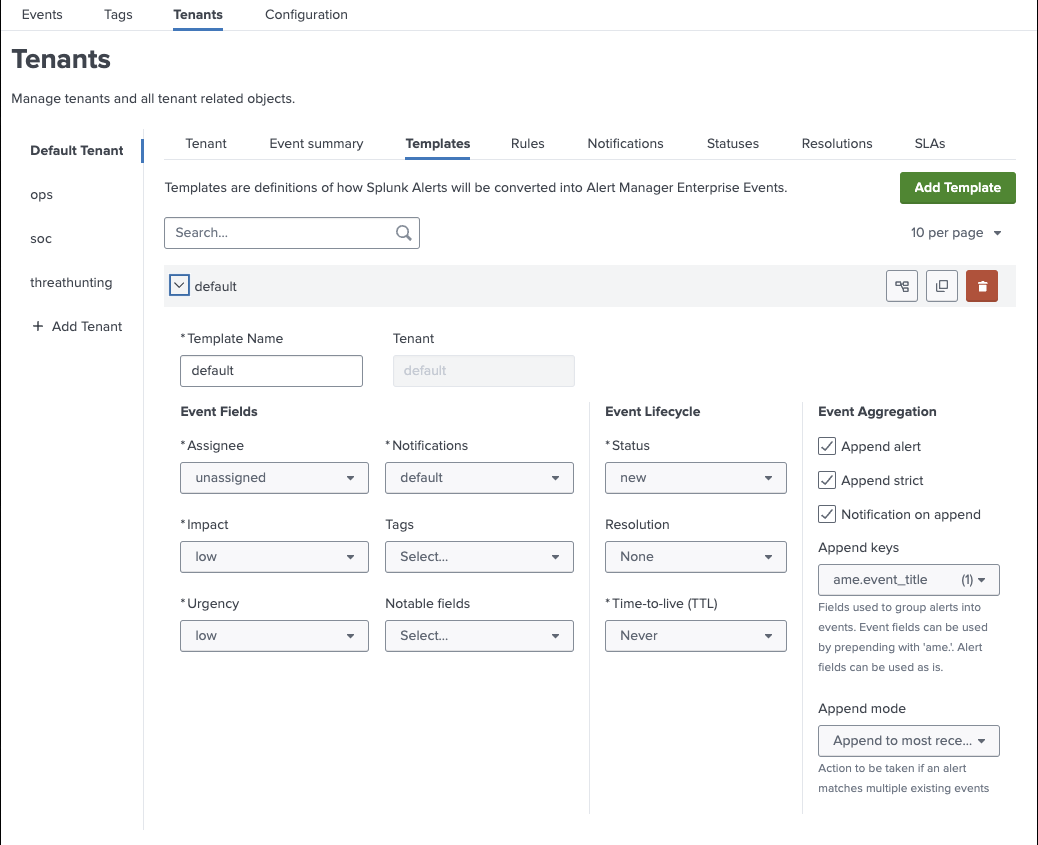
For detailed instructions, see Template Manager.
This action requires power user privileges for the selected tenant.
2. Save Search as an Alert
Run a search in the Search view, then save it as an alert.
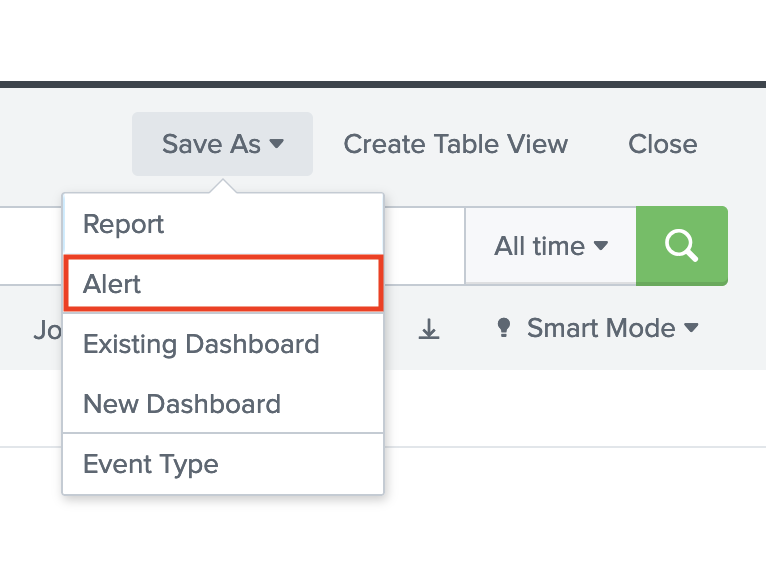
Use commands like table or fields to limit the number of fields stored in an event for efficiency.
3. Complete the Alert Form
Fill out the "Save As Alert" form.
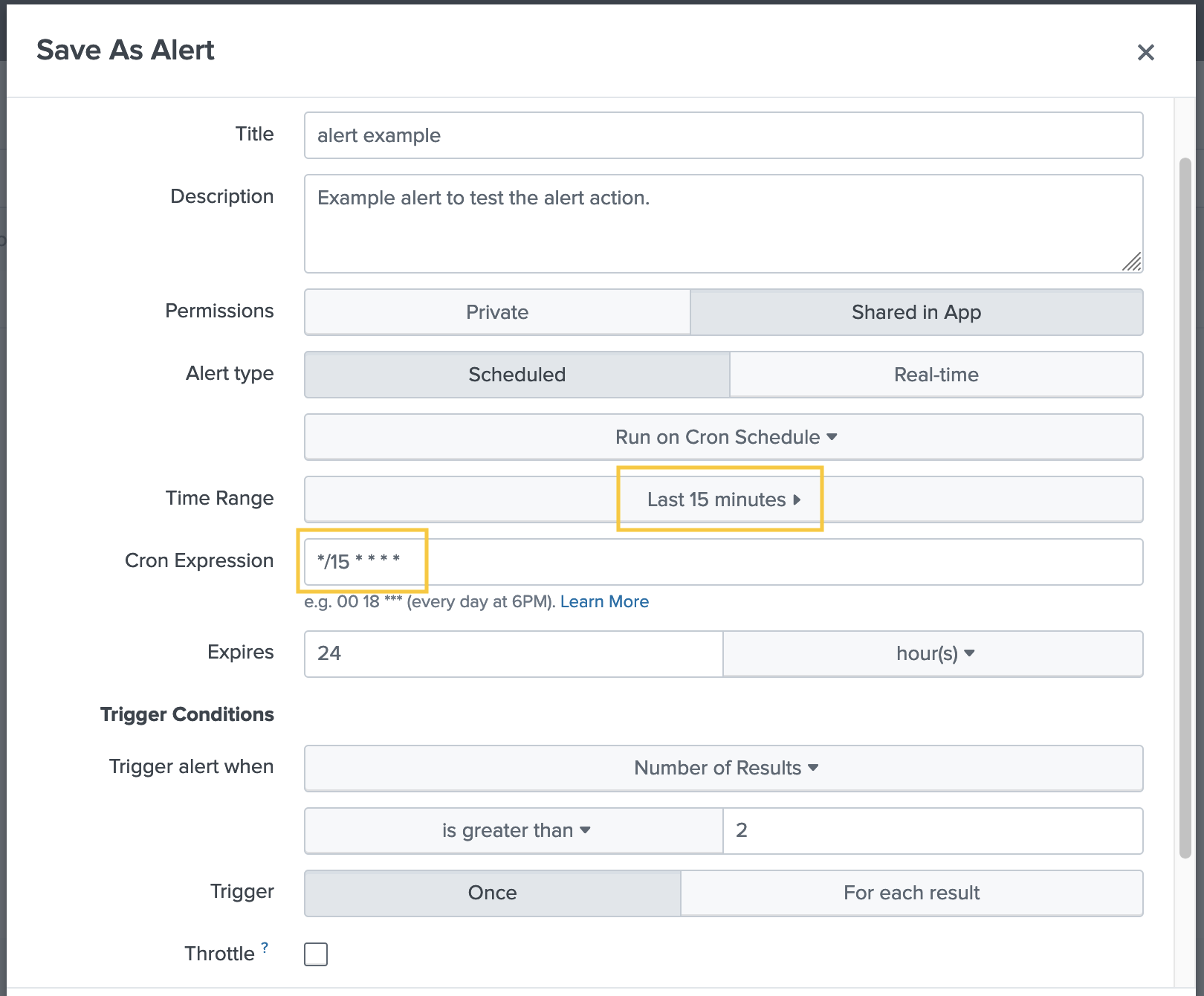
Real-time searches are supported but strongly discouraged due to performance impacts.
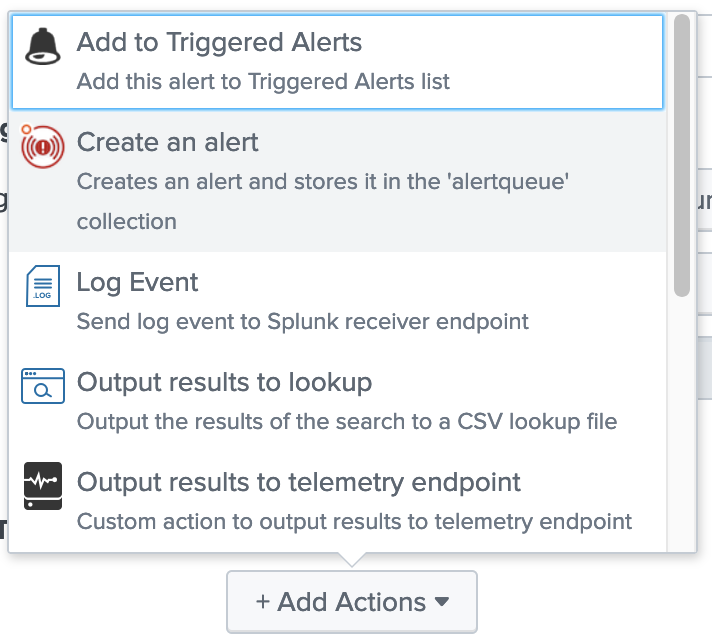
4. Select AME Alert Action
Choose Create Alert Manager Enterprise Event from the alert actions.
5. Configure the AME Form
Complete the AME-specific fields:
- Title: Set a dynamic title for events using search result fields in the format
$result.field$. - Template: Select the template created in Step 1.
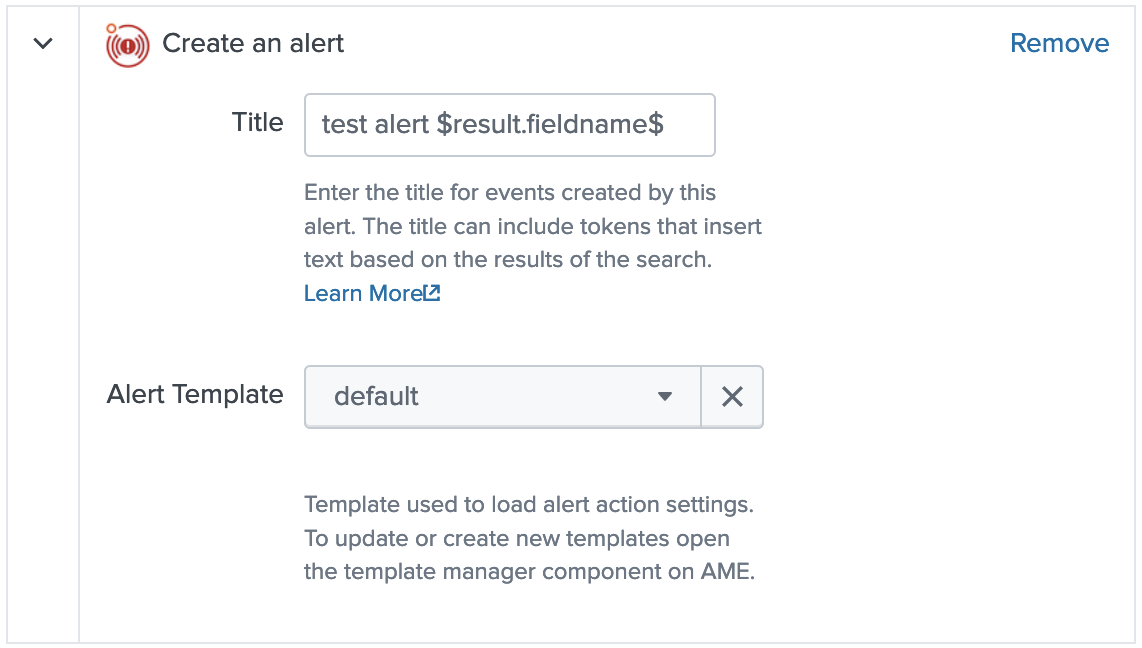
Set the trigger to "Once per Result" and include at least one result field in the title to create unique events for each result row.
6. Save the Alert
Click Save to finalize the alert setup.
Ensure the user running the alert has the appropriate AME power user role for the specified tenant to create events.