Usage
Explore and Manage Observables
AME provides a rich graphical interface to manage your observables. You can quickly obtain an overview of any observable by adding a filter to sort and graph by. Use cases include quickly obtaining a view of your identities based on a field in either the data or metadata, e.g., identifying what percentage of assets are without an owner.
In the Observables menu, use the Overview tab to:
- Filter: Use
Observable Type FilterorAdd filter. - Visualize: Add charts with
Add chart(toggle withHide Charts). - View Details: Click the icon on the right of each row to access in-depth info.
- Select Columns: Use
Meta FieldsandData Fieldsto customize visible columns.
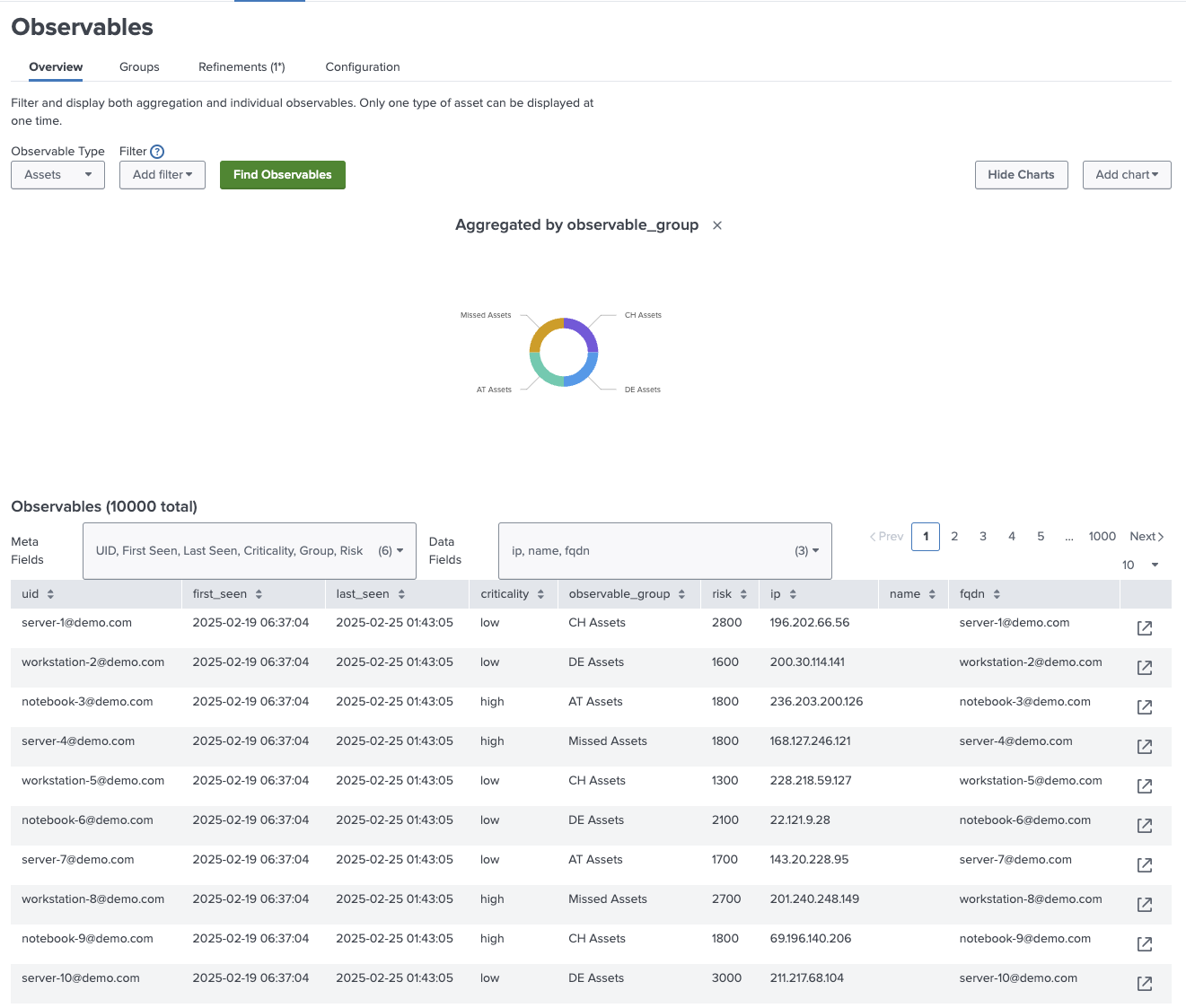
Use Observable Details
Observable details provide in-depth information about an observable that takes part in an Event or a Vulnerability Intelligence Realization.
The observable details are available in the expanded event view in the Observables tab of an event, or the Observables tab of a Vulnerability Intelligence Realization.
In addition the same information is available in the Observable Overview after clicking the expand icon in the outermost right of a row.
When you click the icon on the right of a row in the Observables table, you'll access a detailed view with comprehensive information about the observable.
This view includes several sections:
Observable Details
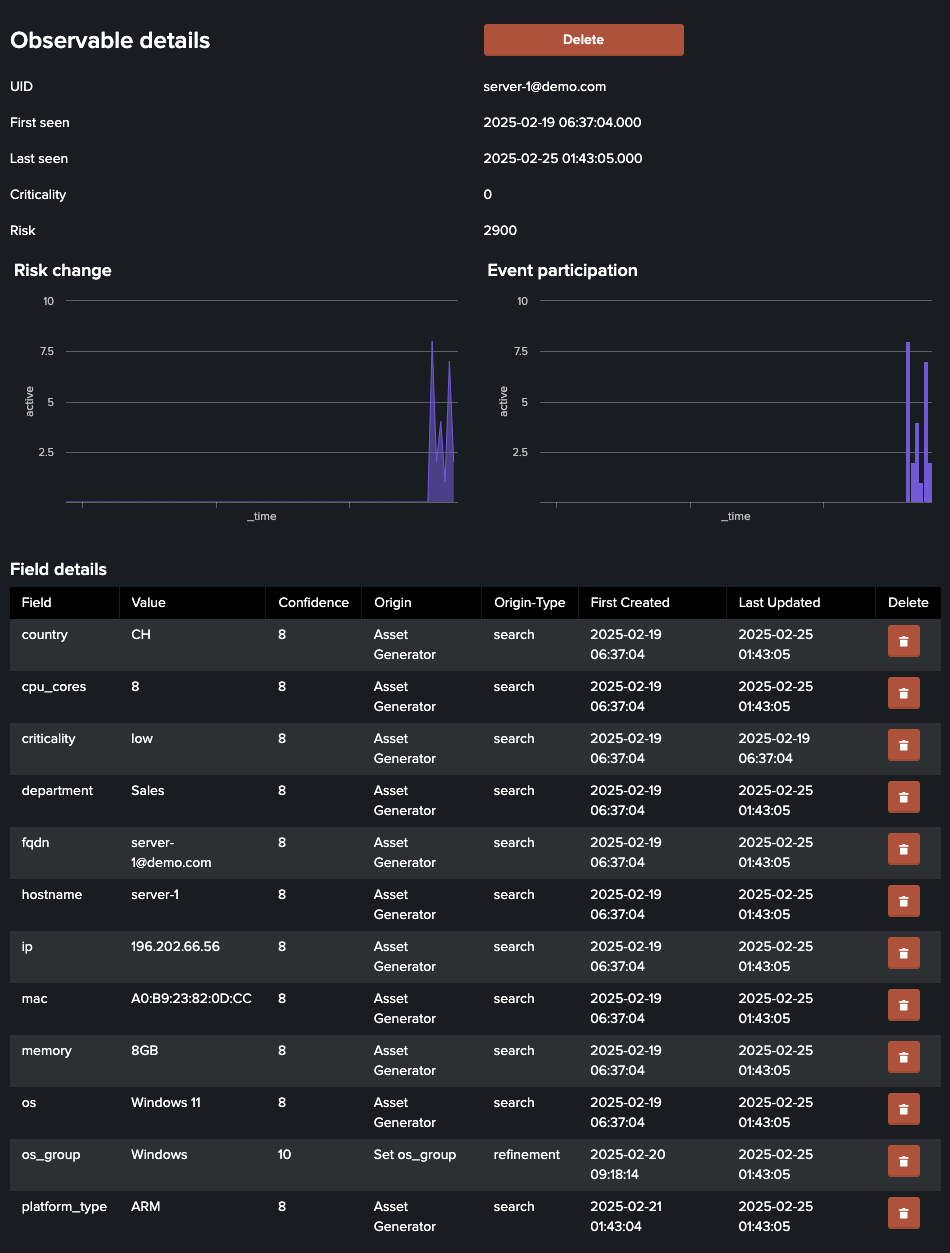
Following detail information is available for an observable:
- UID: The unique identifier for the observable.
- First Seen: The timestamp of the first detection.
- Last Seen: The timestamp of the most recent sighting.
- Criticality: The severity level of the observable.
- Risk: A numeric risk score associated with the observable.
Following visual trends are available:
- Risk Change: A chart showing changes in the risk score over time, helping you track risk trends.
- Event Participation: A chart displaying the observable's involvement in events over time, aiding in identifying patterns or anomalies.
Following field details are available:
- Field: The name of the data field (e.g.,
country,ip). - Value: The value associated with the field.
- Confidence: A numerical confidence level (0-100) indicating the reliability of the data.
- Origin: The source of the data (e.g., search or refinement).
- Origin Type: The type of origin, such as
searchorrefinement. - First Created: The timestamp when the field was first added.
- Last Updated: The timestamp of the most recent update.
- Action: An option to delete the field (e.g., a button or icon).
Fields can be deleted, but may re-appear when new data is ingested
Risk Details
For a complete explanation about risk scoring in AME, see Add risk scores
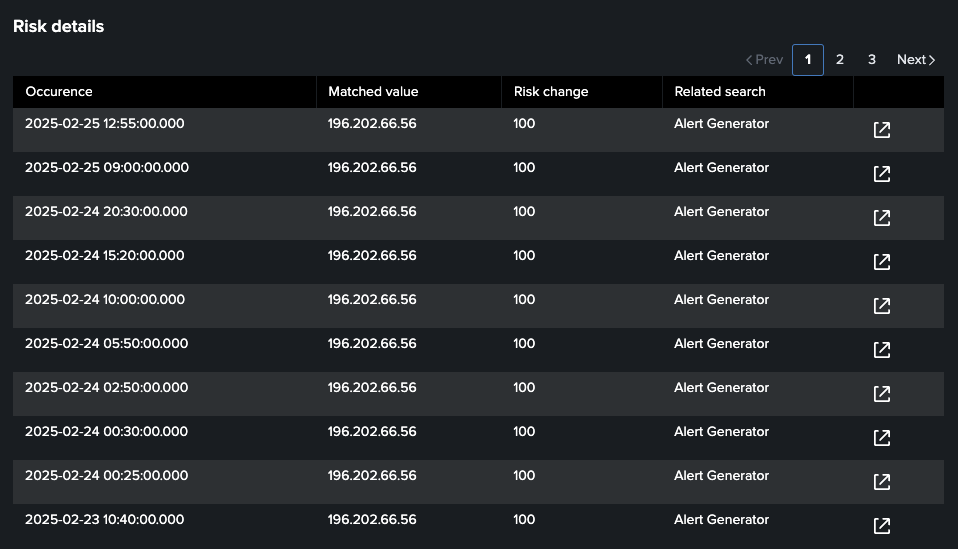
- Occurrence: The timestamp when the risk event occurred.
- Matched Value: The value triggering the risk.
- Risk Change: The change in risk score.
- Related Search: The source or search generating the risk data.
Use the drilldown button to find the contributing AME event.
Events Details
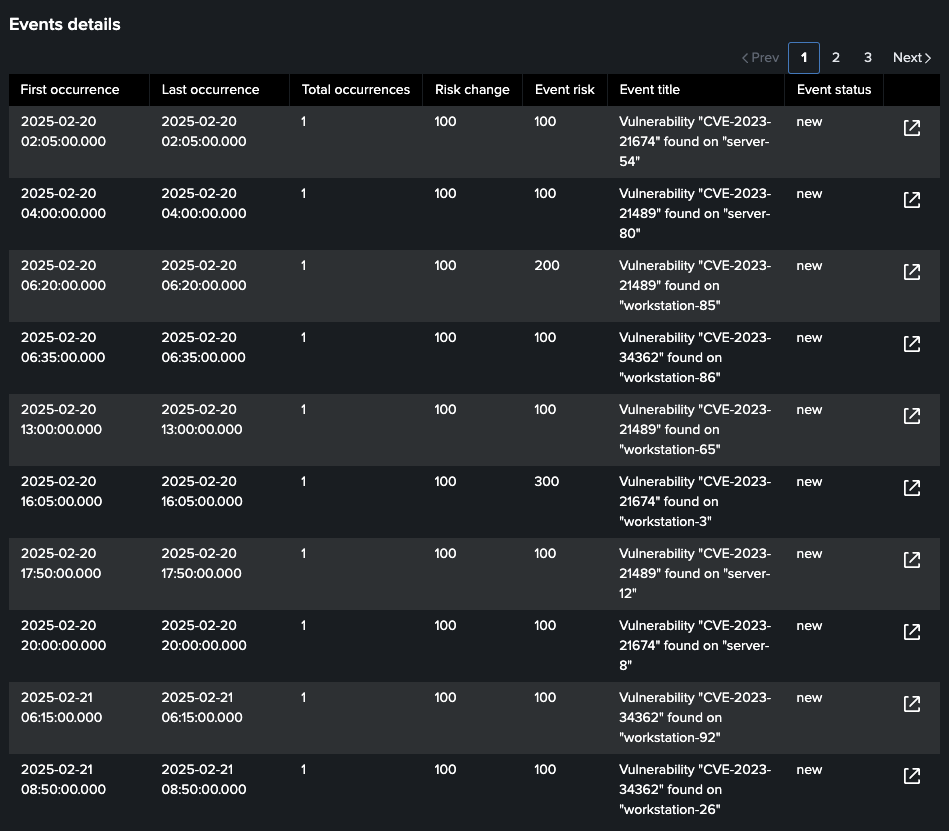
- First Occurrence: The timestamp of the first event occurrence.
- Last Occurrence: The timestamp of the most recent occurrence.
- Total Occurrences: The number of times the event has occurred.
- Risk Change: The change in risk score triggered by the event.
- Event Risk: The risk level of the event.
- Event Title: A description of the event.
- Event Status: The current status of the event.
Use the drilldown button to find the contributing AME event.
Next Steps
- Refine Observables - Transform your data post-ingestion
- Group Observables - Organize observables into logical groups
- Configure Settings - Set up age-out rules and lookups